Friday, April 14, 2017

RUSD VPN Setup for Mac OSX


Click on the Apple > System Preference
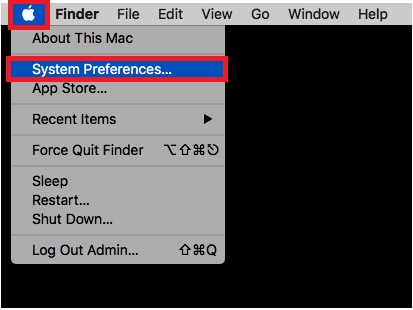


Click on the Network Icon


Click on the + in the lower left
Select VPN as the Interface
Select L2TP over IPSec as the VPN Type
Type in RUSD as the Service Name
Click Create


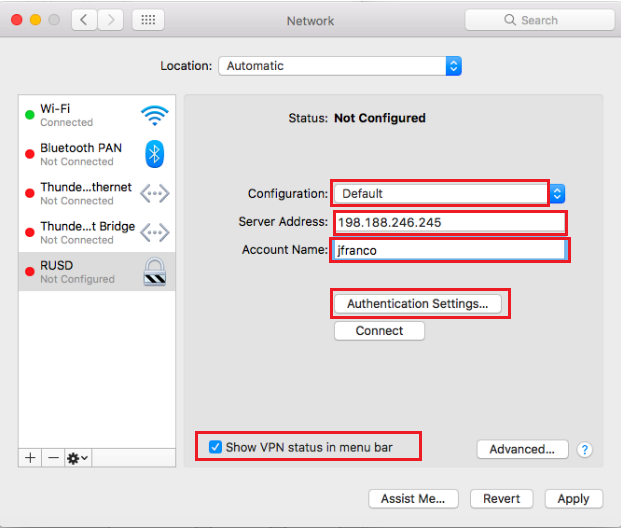
Select Default in the Configuration field
Type in 198.188.246.245 in the Server Address field
Type in your Active Directory user name in the Account Name field  (ie: jfranco)
Make sure Show VPN status in menu bar is checked
Click Authentication Settings
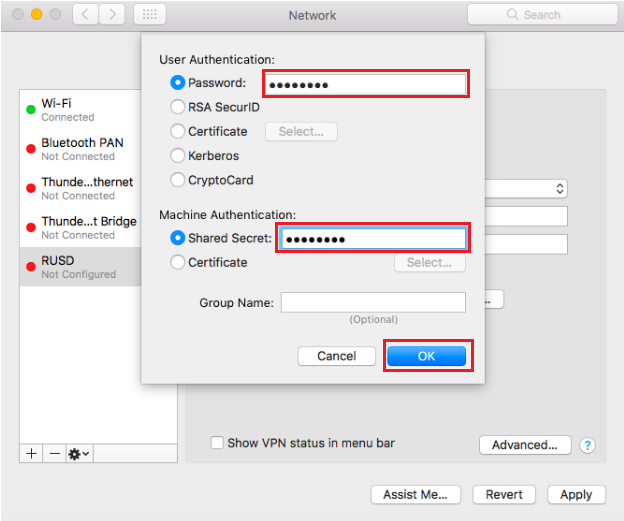
Type in your RUSD Domain password in the Password field
Type in ******** in the Shared Secret field (Please request the Shared Secret from the Technology Services Department.)
Click OK
Click Apply and close the Network window.


Click the VPN icon in the upper right area of the screen
Click Connect RUSD


You have now successfully configured VPN on your Mac.

Tuesday, March 29, 2016

Youtube.com Restricted Mode

Rowland Unified School District has implemented Youtube Restricted Mode.

A large number of videos are available when YouTube is restricted. To add additional content, YouTube settings in Google Apps allow approvers to search for and approve additional videos to make them viewable by all users in their organization.  You may become an approver by joining the Classroom Teachers Group.

Here is how to join the classroom teachers group:

Log on to google with your rowlandschools.org account and click on the google apps button, then click groups.


Click on Browse all to find the Classroom Teachers Group.
Click on the group "Classroom Teachers."


Click on the button "Apply to join group."


Within a day or two, you will be added to the group.  Approval for this group is a manual process.

Youtube algorithmically restricts content that's available through this setting. No algorithm is perfect. If you see inappropriate content, please flag it.


If your Google Apps administrator gave you permission to approve YouTube videos, you have unrestricted access to YouTube and can approve videos for anyone signed in with their Google Apps account in your organization to watch.
By default, super administrators can approve videos.  
  1. Sign in to YouTube with your Google Apps account.
  2. Enter what you’re searching for and then filter the results by Type: Video
  3. Click the video that you want to approve.
  4. Below the video player, click Approve to approve the video for everyone. (as shown below)

Once a video has been aproved by you (the teacher).  This video will be viewable to students if they log on to Youtube with their rowlandschools.org account.


Thursday, March 3, 2016

RUSD VPN Setup

1.  Go to Control Panel/Network and Internet/Network and Sharing Center
2.  Click "Set up a new connection or network"
3.  Click "Connect to a workplace"

\

4.  Click "User my Internet connection (VPN)"


5.  The VPN server address is 198.188.246.245.  You may name the connection whatever you wish.


6.  Now that the connection is created, you will need to edit the VPN type.  Click the little network icon in the lower-right-hand corner by the clock.  It kind of looks like a screen with a little plug next to it.
7.  Click on the connection name  you just created.  In this case, RUSD.


7.  The Network & Internet windows appears.  Click on the connection name again.


8.  You will see the options "Connect," "Advanced Options" and "Remove."  Click "Advanced Options."


 9.  Click the "Edit" button under the Connection properties information.

10.  Under "VPN type," select "Point to Point Tunneling Protocol (PPTP)."

 11.  Now repeat steps 6-8 but click on Connect in order to connect to the new VPN Connection.


12.  The word "Connected" should confirm that everything works.